Chord ai (Android) — FAQ
How to use Chord ai
Is Chord ai free on Android?
Yes. Chord ai is free, you can download it on the Google Play Store. You can transcribe any song for free, and even transcribe a live band in real time with your microphone for free. For regular usage, detailed song analysis, or frequent export and printing, you will typically need the paid PRO features.
How can I download Chord ai for Android?
Chord ai Android is available on the Google Play Store. There is currently no other official way to download Chord ai Android. Downloading from other platforms is unsafe and not recommended.
Can I use an older version of Chord ai Android?
Currently the only officially supported version of Chord ai Android is the one available on the Google Play Store. Downloading old versions from other platforms is unsafe and not recommended.
Can I use Chord ai in real time with the microphone?
Yes. Chord ai can analyze the sound it records with your microphone and transcribe the chords in real time. From the Chord ai Android home screen, select the "Microphone" option and press the big red button to start recording.
Chord ai is currently the only app capable of doing this with high accuracy. It is based on on-device AI models running directly on your device, so it does not require an internet connection and has low latency. It can run in real time and transcribe the chords around you.
Are the chord transcriptions accurate?
Chord ai is currently the most precise application for chord transcription. It recognizes hundreds of chord types (C, Am7, E#dim…) including rare alterations (e.g. Ab13b5) and chord inversions (e.g. Am / C).
How to select a song?
Chord ai offers multiple ways to load a song. As of 2025, the options are "Microphone", "Browse file", "Link URL" and "YouTube". The "Microphone" and "Browse file" options are the recommended ways to load a song: they always work and do not require an internet connection. "Link URL" and "YouTube" depend on your internet connection, and a requested song may be inaccessible depending on the online platform or if the app identifies a license issue or unlicensed copyrighted content.
Where are songs and playlists stored?
Following the default behavior for Android applications, stored songs and playlists are kept in Chord ai's private app data storage. The raw data is not accessible in the regular Android file browser.
The data is also encrypted, so it is not possible to open the raw audio and transcriptions directly. Use the export options inside the app to save the audio data, or export a PDF.
How can I sync my songs and playlists across devices automatically?
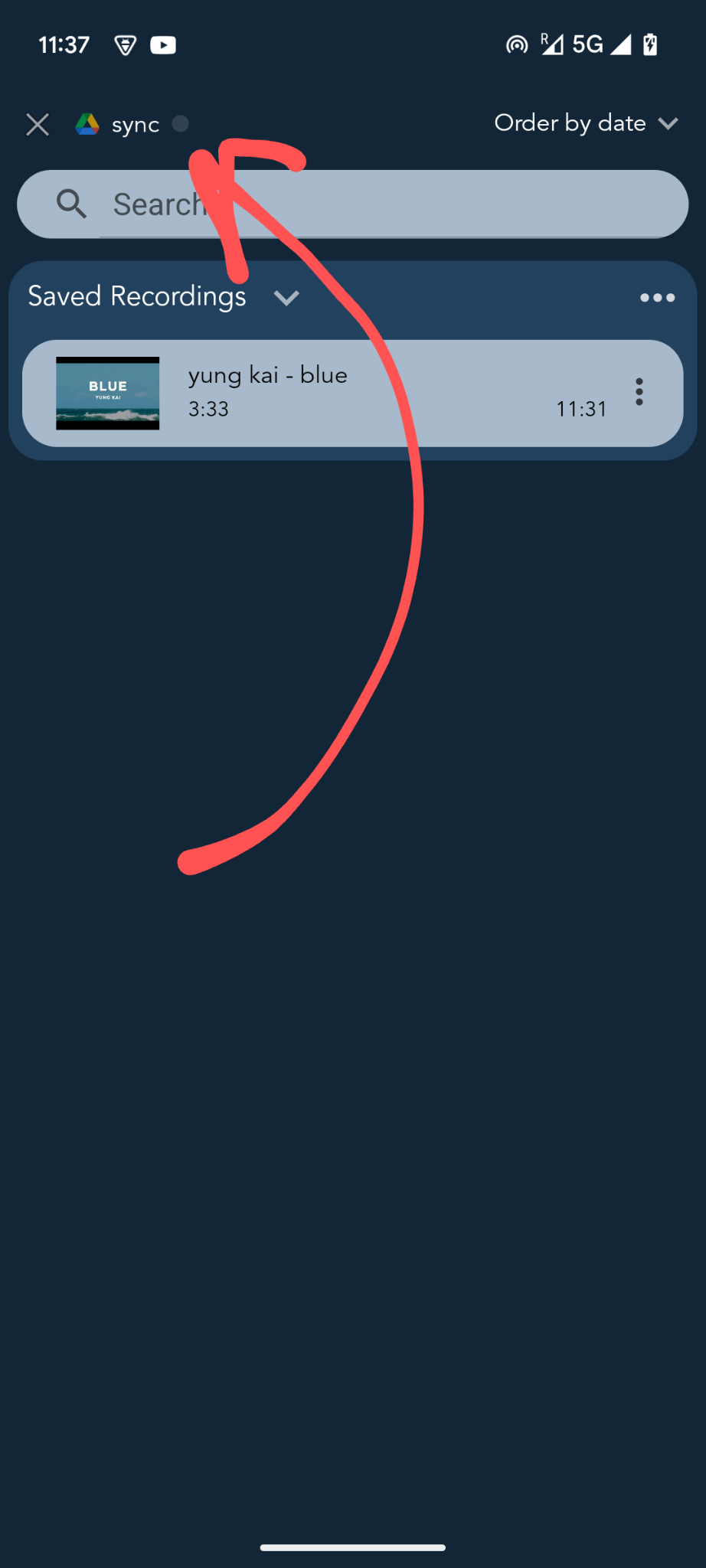
In the app's Playlist activity, on the top left, there is a "Sync" option. This automatically syncs your stored playlists with your personal Google Drive. After tapping it and agreeing to the Google Drive permissions, the sync runs automatically.
You choose the Gmail address the first time you tap "Sync". It does not need to be the same Gmail address you use to pay for Chord ai PRO. The sync option only works across Chord ai Android devices; it cannot sync files with Chord ai iOS.
Which file formats can be used with Chord ai?
Most standard audio (wav, mp3, ogg, flac…) and video (MPEG, avi, mp4…) formats are handled by Chord ai. Just open the file from your phone storage to verify.
How do I change the instrument?
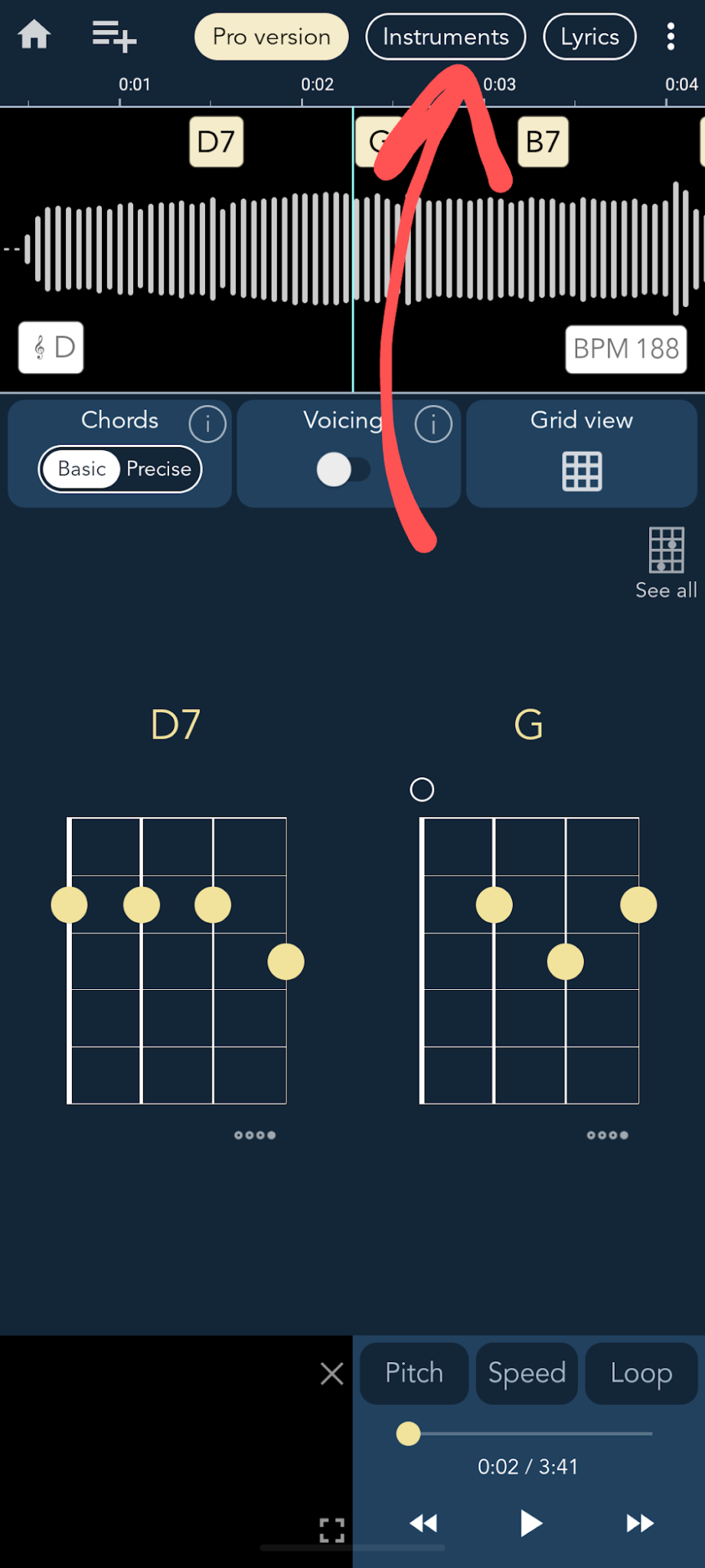
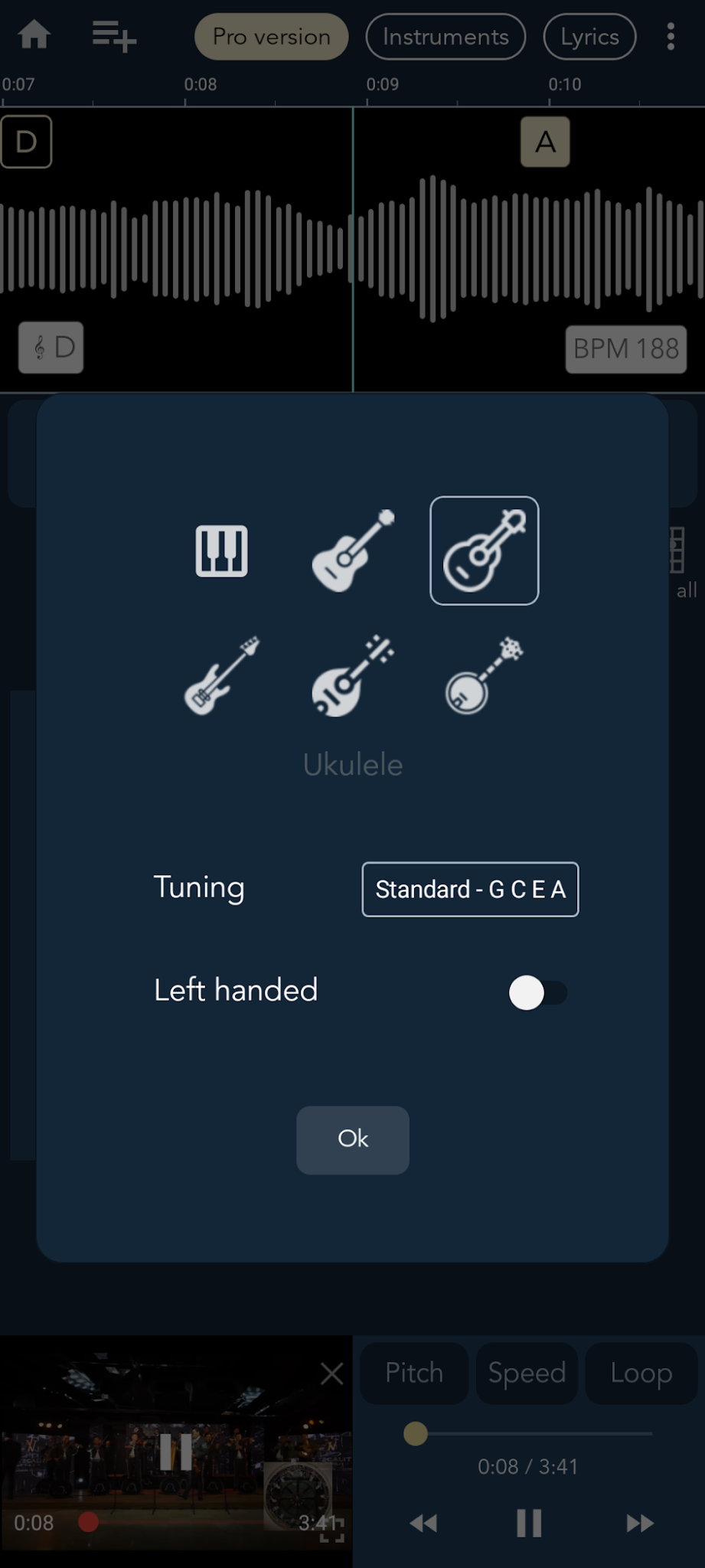
To select a different instrument, open a song, then tap the "Instruments" button at the top of the screen to open the instruments menu. From there you can select the instrument, change the tuning, or choose the left-handed position for string instruments.
How do I display guitar positions for left-handers?
Open a song, tap the "Instruments" button at the top of the screen, and select the left-handed position for the string instrument.
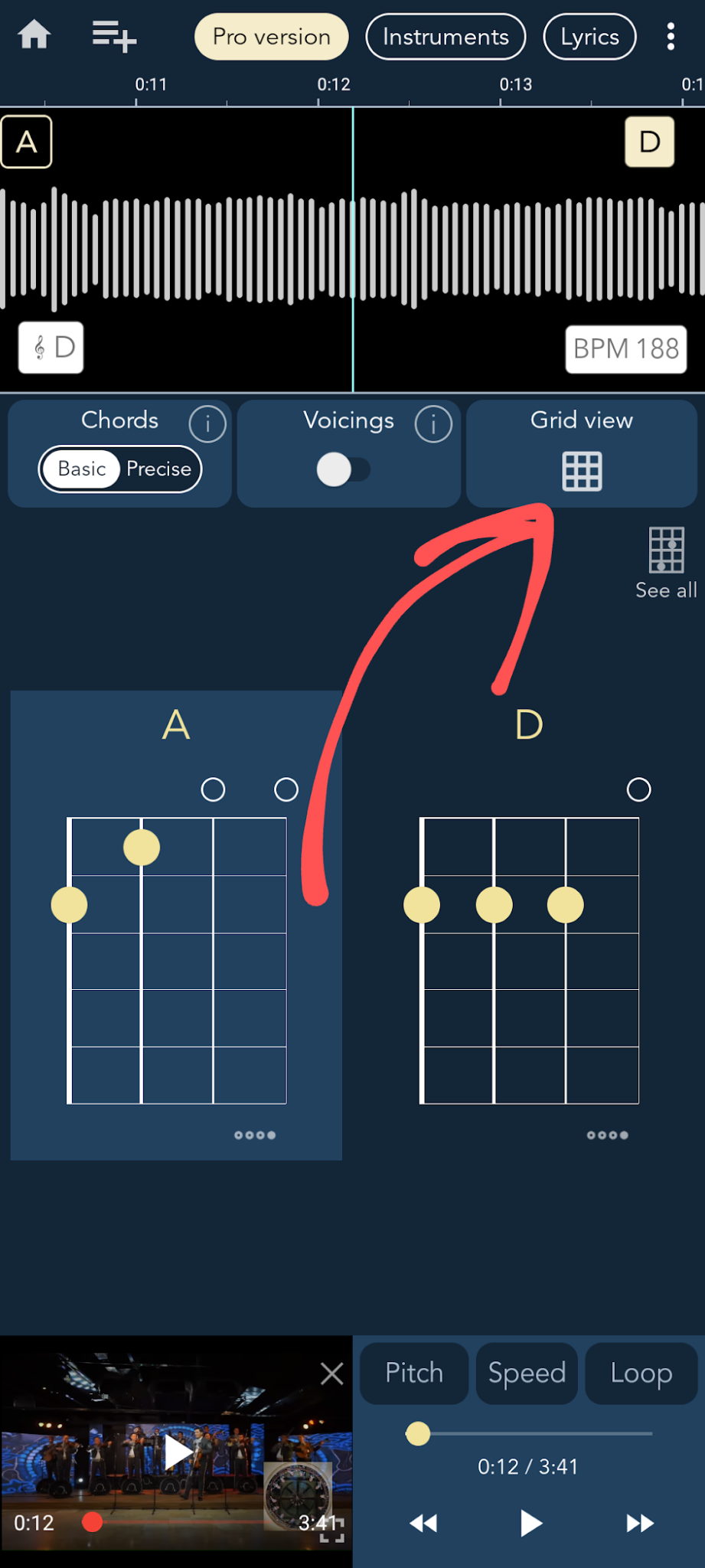
How do I switch between grid view and waveform timeline?
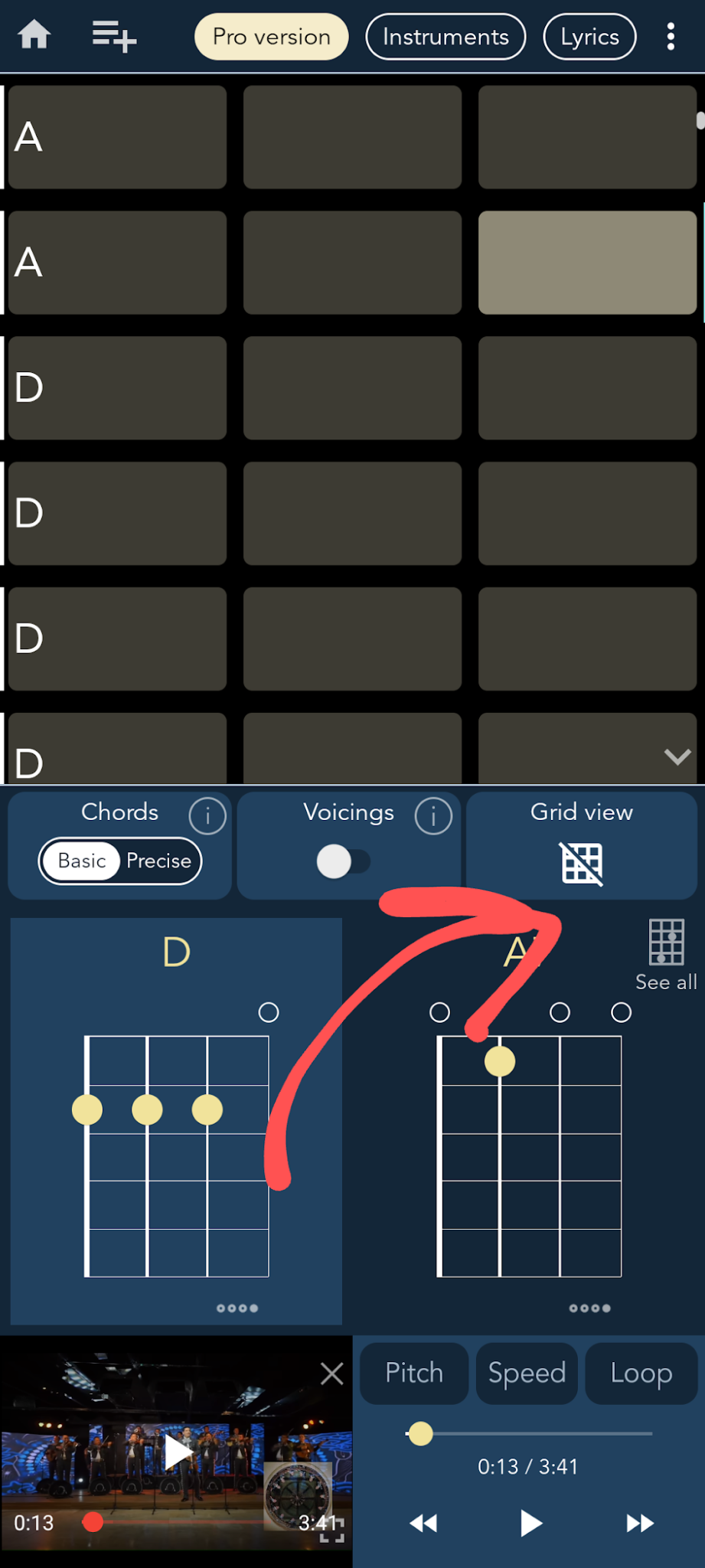
Use the "Grid" view toggle in the right center of the screen. Note that in the "Microphone" view, this toggle only becomes visible once audio has been recorded.
How can I change the capo position?
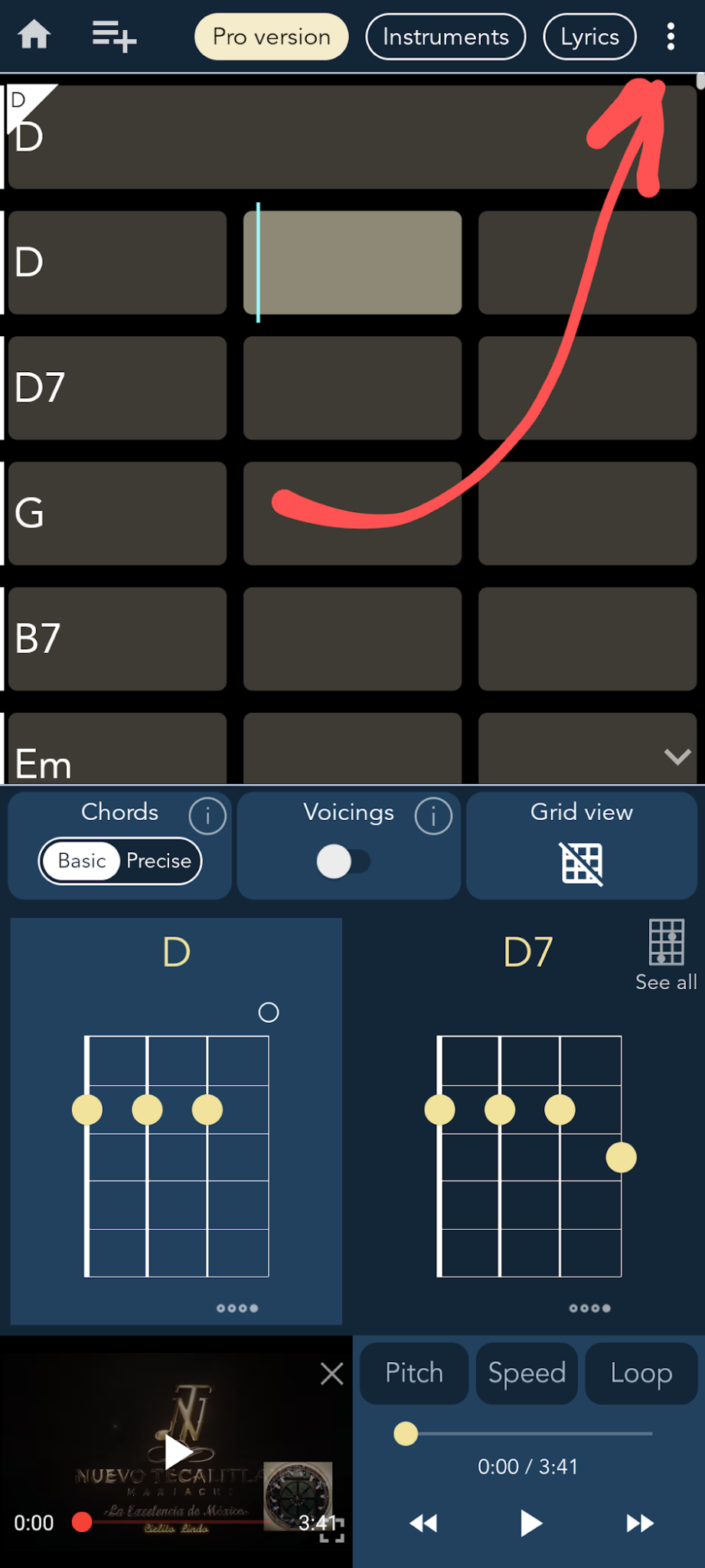
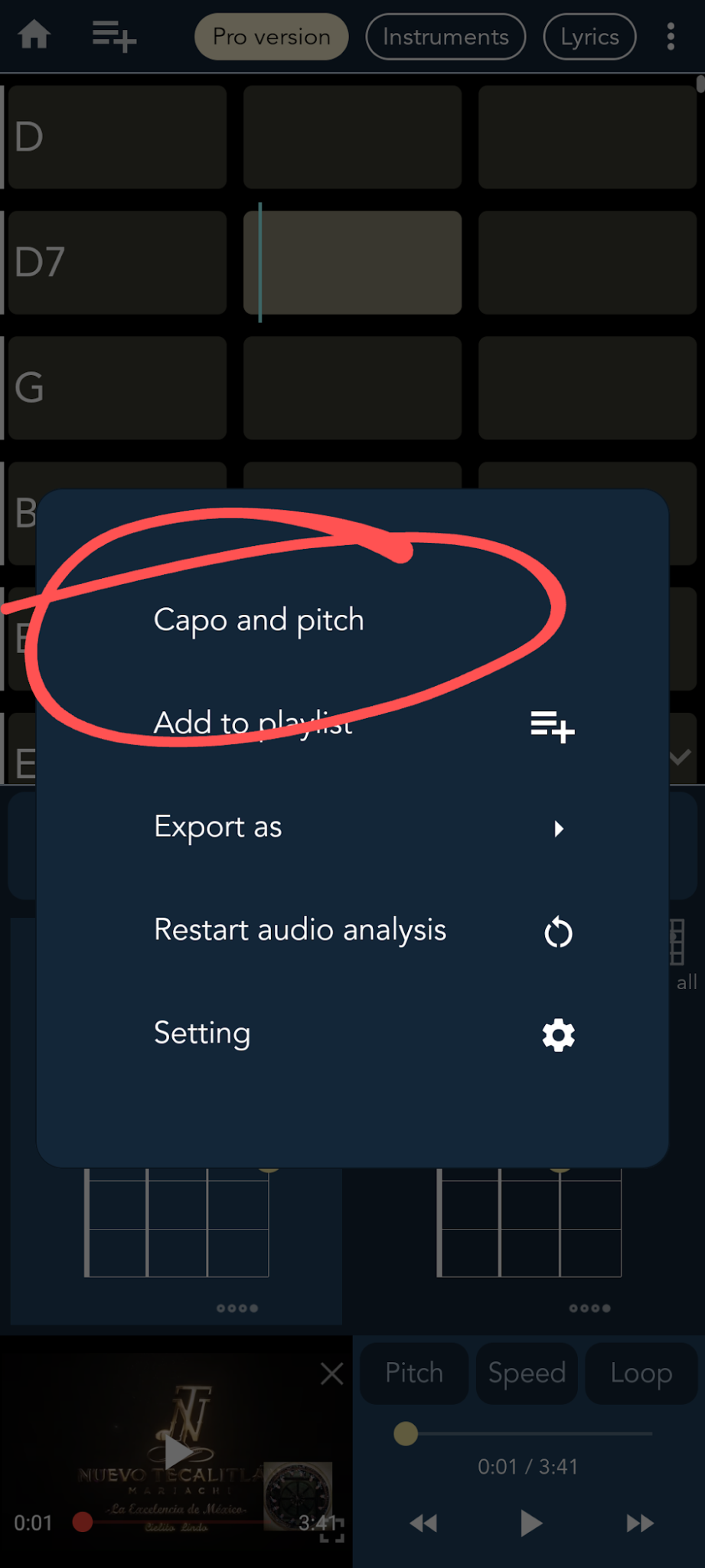
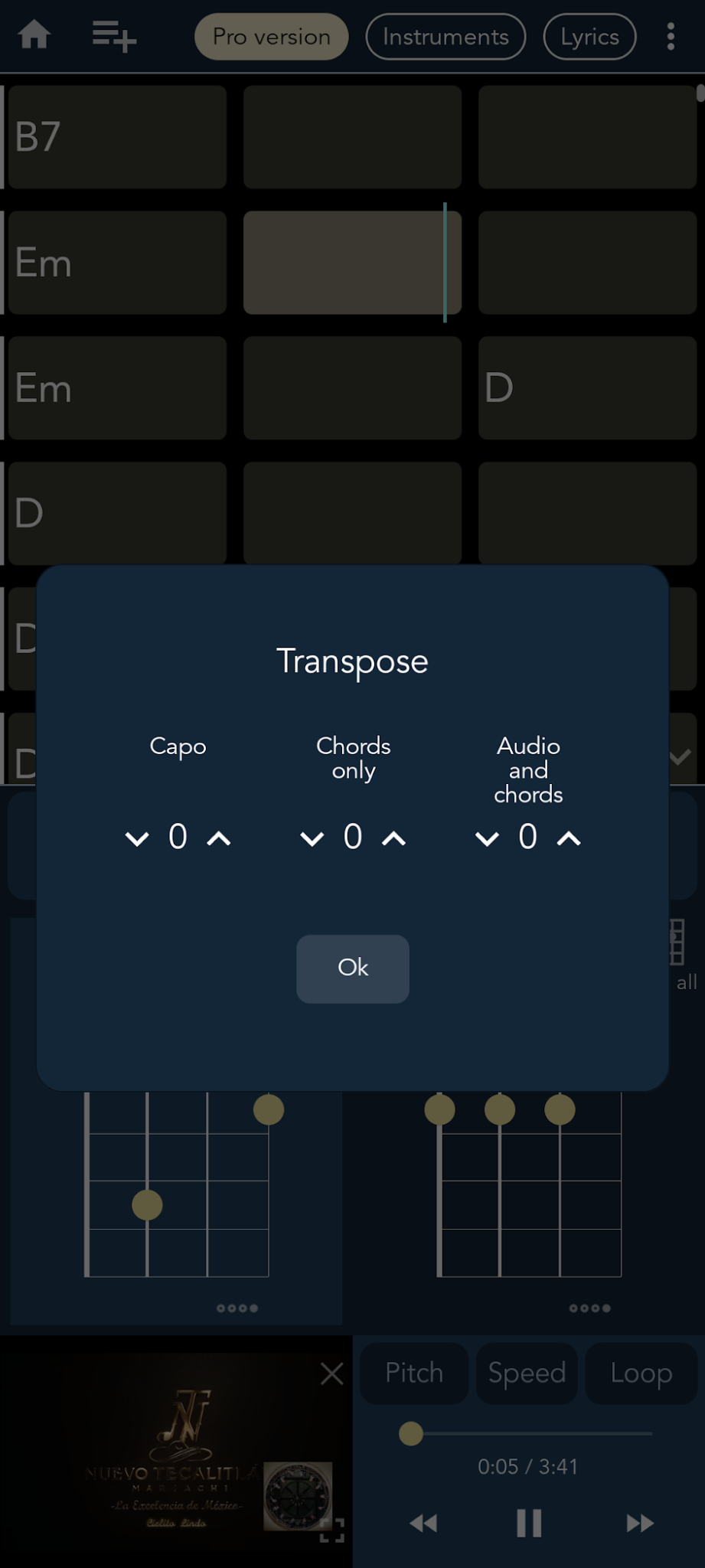
Open the "Capo and pitch" transposition menu. Open a song, then tap "⋮" on the top right of the screen, and open "Capo and pitch". In this menu you can apply three transformations: change capo position, transpose the chords only, or transpose chords and audio.
Note: increasing the capo position by +1 is equivalent to transposing the chords by -1.
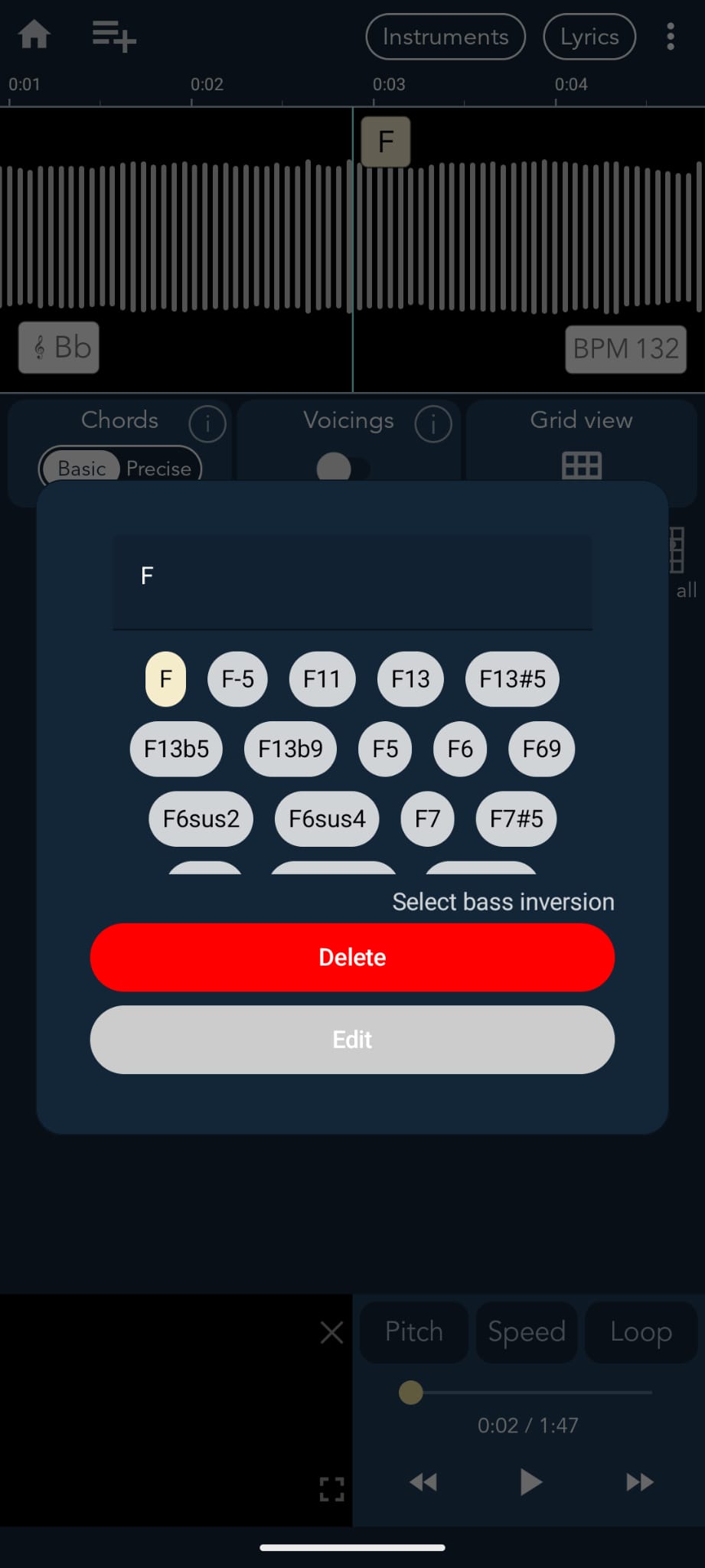
How can I delete or edit a chord?
Long-tap a chord to open the edit window. This works in both the grid view and the waveform view.
How do I transpose the audio?
Open the "Capo and pitch" transposition menu (open a song, tap "⋮" on the top right, then "Capo and pitch"). You can transpose chords and audio together from this menu.
Note: transposing audio is only possible if the song is loaded from your device or recorded with the microphone — not for YouTube songs.
How do I transpose the chords (without the audio)?
Open the "Capo and pitch" transposition menu (open a song, tap "⋮" on the top right, then "Capo and pitch") and choose to transpose the chords only.
Note: increasing the capo position by +1 is equivalent to transposing the chords by -1.
How do I adjust the audio playback speed?
Open a song and tap the "Speed" button in the playback menu.
How do I loop over a specific section of the audio?
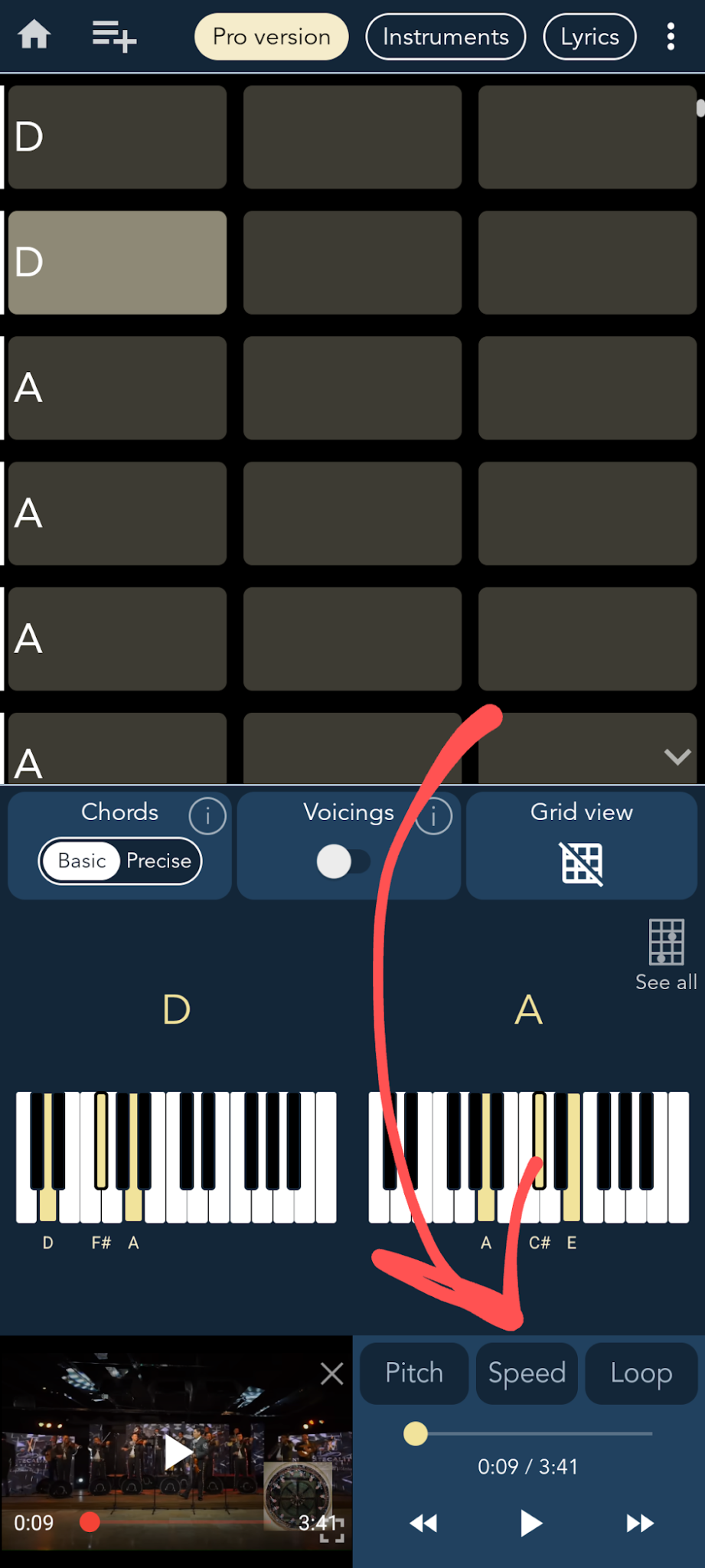
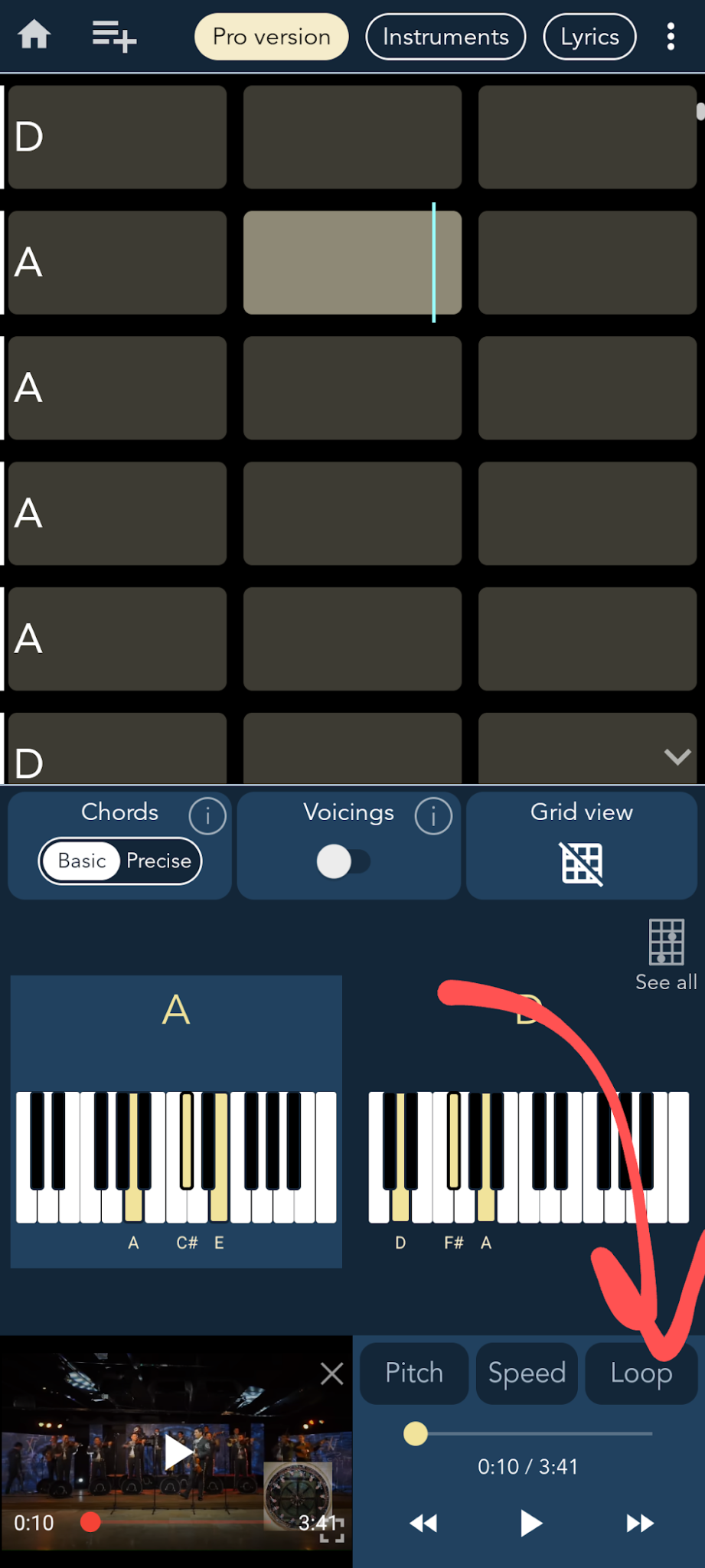
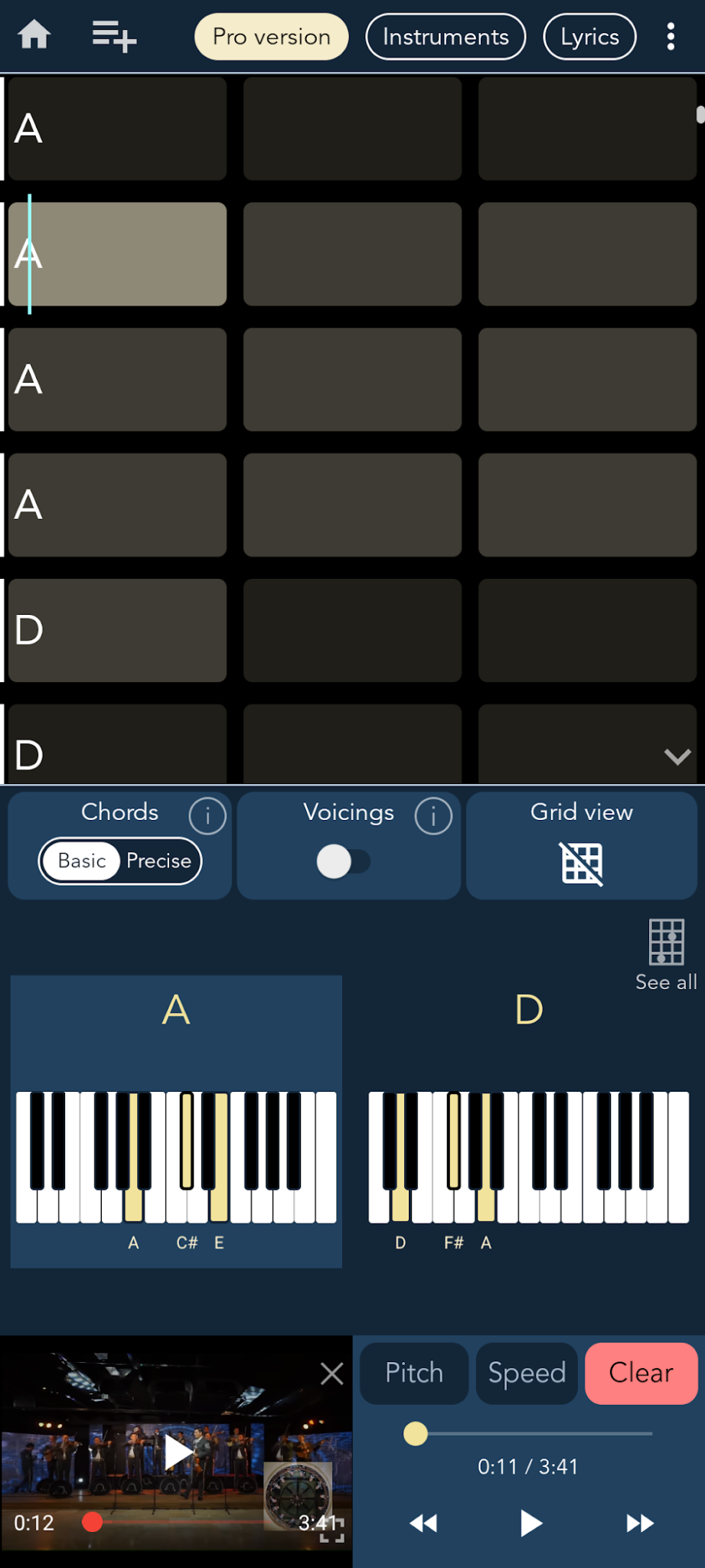
Open a song and tap the "Loop" button in the playback menu. In the waveform view, place the timeline where you want the loop to start, then press "Start" (same for the loop stop marker). In the grid view, tap directly on the first beat to set the start marker, and on the last beat to set the stop marker. The loop selection is shown with shading in both views. Press "Clear" to disable the loop.
Note: with YouTube, a small delay is expected each time the loop restarts. To avoid this, use audio loaded from your device — the loop restart and playback will be smooth.
How do I use the source/instrument separation feature?
Source separation into individual instrument tracks is currently not available on Chord ai Android (it is only available on iOS). Stay tuned for updates.
Can I extract the bass line from Chord ai Android?
Chord ai Android currently focuses on chord transcription and does not transcribe a bassline precisely. The chord output can help you find the bassline by ear quickly: the bass note of the chord (for example, A for Am7) gives a good indication of what the bass plays. With "Precise" chord transcription enabled, you also get chord inversions (for example, Am7 / C), which directly tell you the bass note.
Where is multitrack separation ("Midify") on Chord ai Android?
The Midify feature is currently not available on Chord ai Android (it is only available on iOS). Stay tuned for updates.
How do I export songs from Chord ai to other apps?
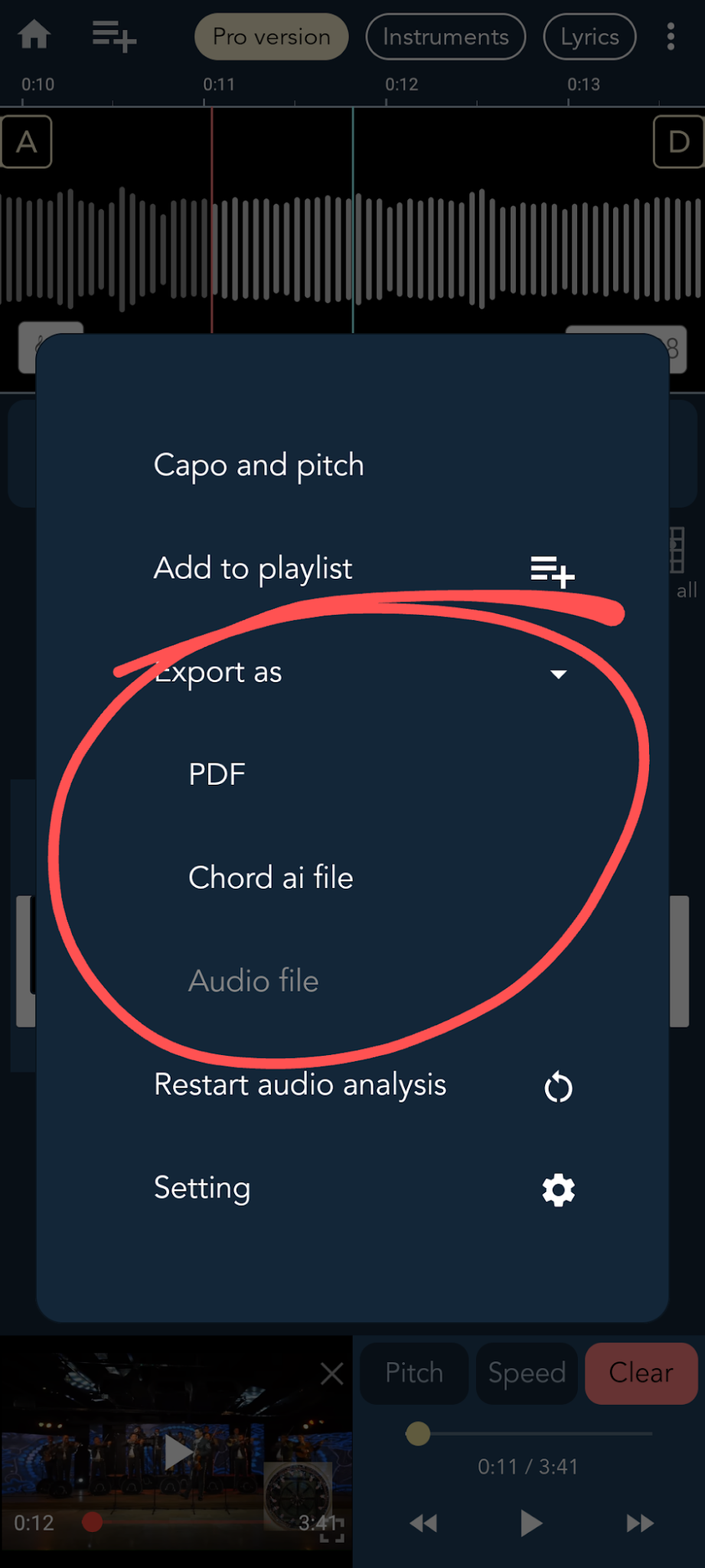
With Chord ai Android you can export from the song menu "⋮" at the top of the song screen. You can export in three formats: Audio file, PDF, or Chord ai file. The Chord ai file is only readable by another Chord ai app. The PDF is meant to be printed. The Audio file is the best option to share with other apps.
Note: audio export is not possible for YouTube songs.
How do I export to PDF or print?
From the song menu "⋮" at the top of the song screen, choose PDF export. The PDF is meant to be printed.
Note: audio export (alongside PDF) is not possible for YouTube songs.
Can I export chords to MIDI format?
MIDI export is currently not available on Chord ai Android (it is only available on iOS). Stay tuned for updates.
How do I display or hide chord degree notation?
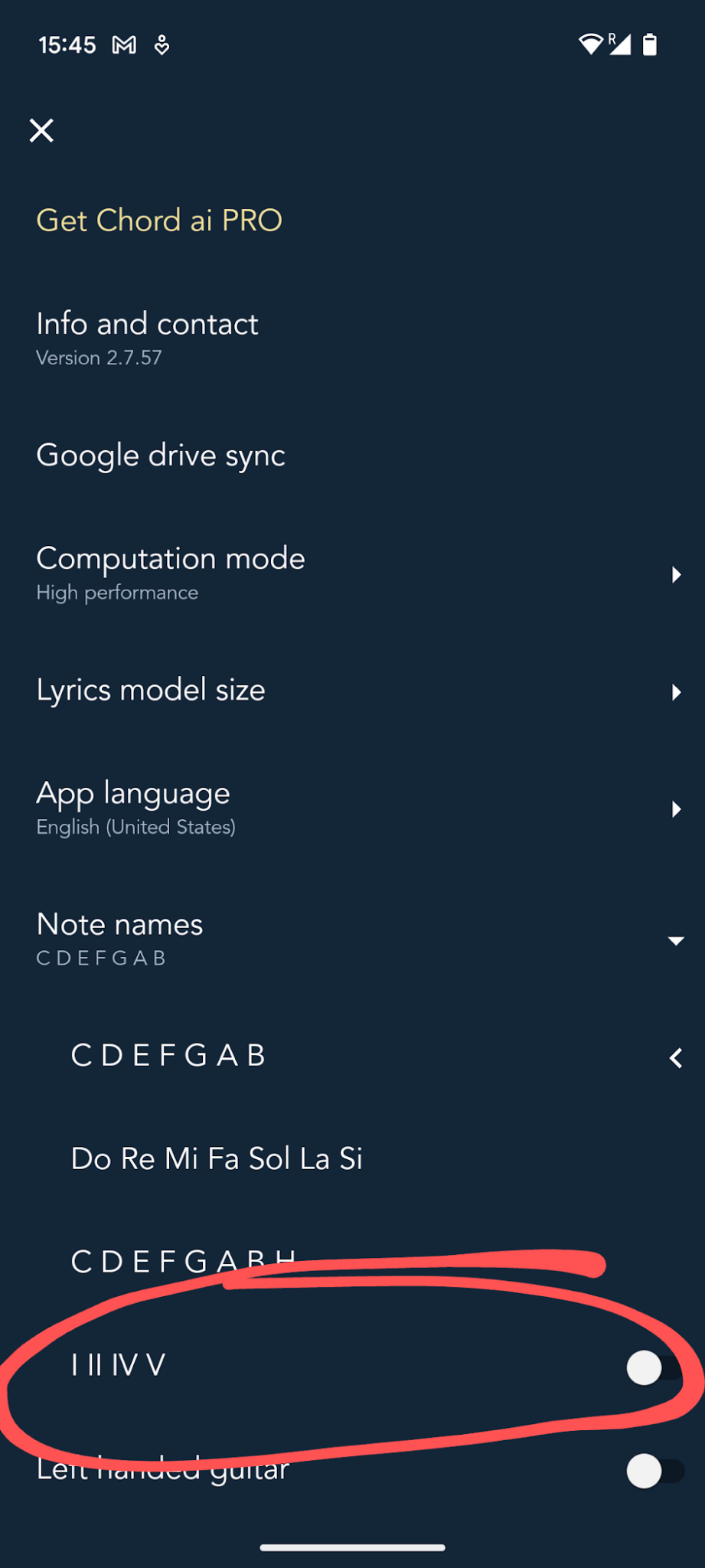
Open the app settings (the gear icon, accessible from the home screen, or from the bottom of the song menu "⋮"). Open the Chord name sub-menu, and toggle Chord Degrees on or off.
How do I change the note names to "do, ré, mi, fa, sol…"?
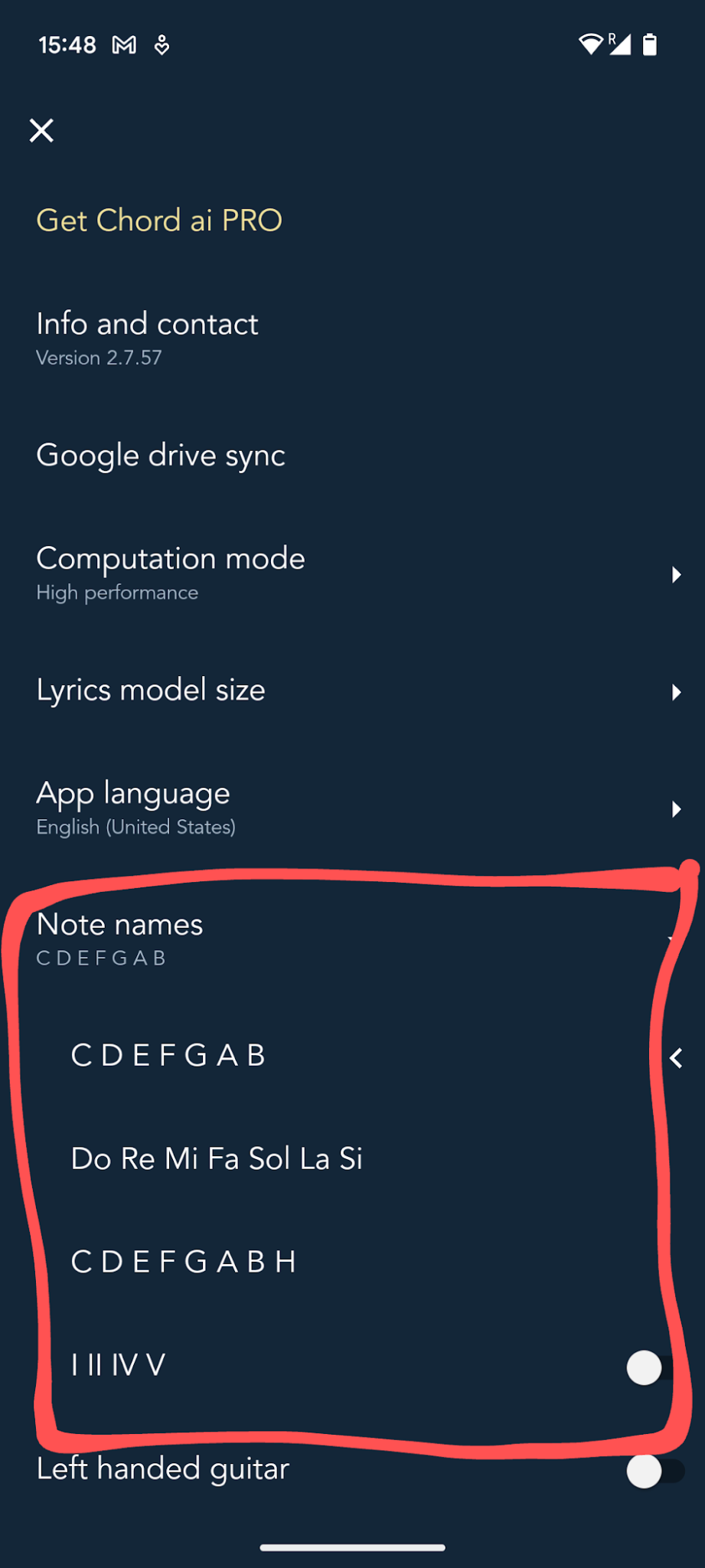
Open the app settings (the gear icon, accessible from the home screen, or from the bottom of the song menu "⋮"). Open the Chord name sub-menu and select your preferred note names.
How can I use Chord ai on my PC (laptop or desktop)?
Chord ai is currently developed only for Android, iOS and macOS. You can use screen mirroring tools to cast the screen from your phone or tablet to your PC or TV.
Some users have reported being able to run Chord ai on PC using an Android emulator. This is unstable, and we do not provide official support. The emulator most likely needs to support the Google Play Store to work properly with Chord ai.
How can I use Chord ai on my TV?
We have successfully tested screen broadcasting from an Android phone to a TV using Google Chromecast or Google TV. In theory, other screen broadcasting apps could also work, though they may be unstable and we have not tested them.
Chord ai PRO: features, pricing, cancellation, refund
How can I get Chord ai PRO for Android?
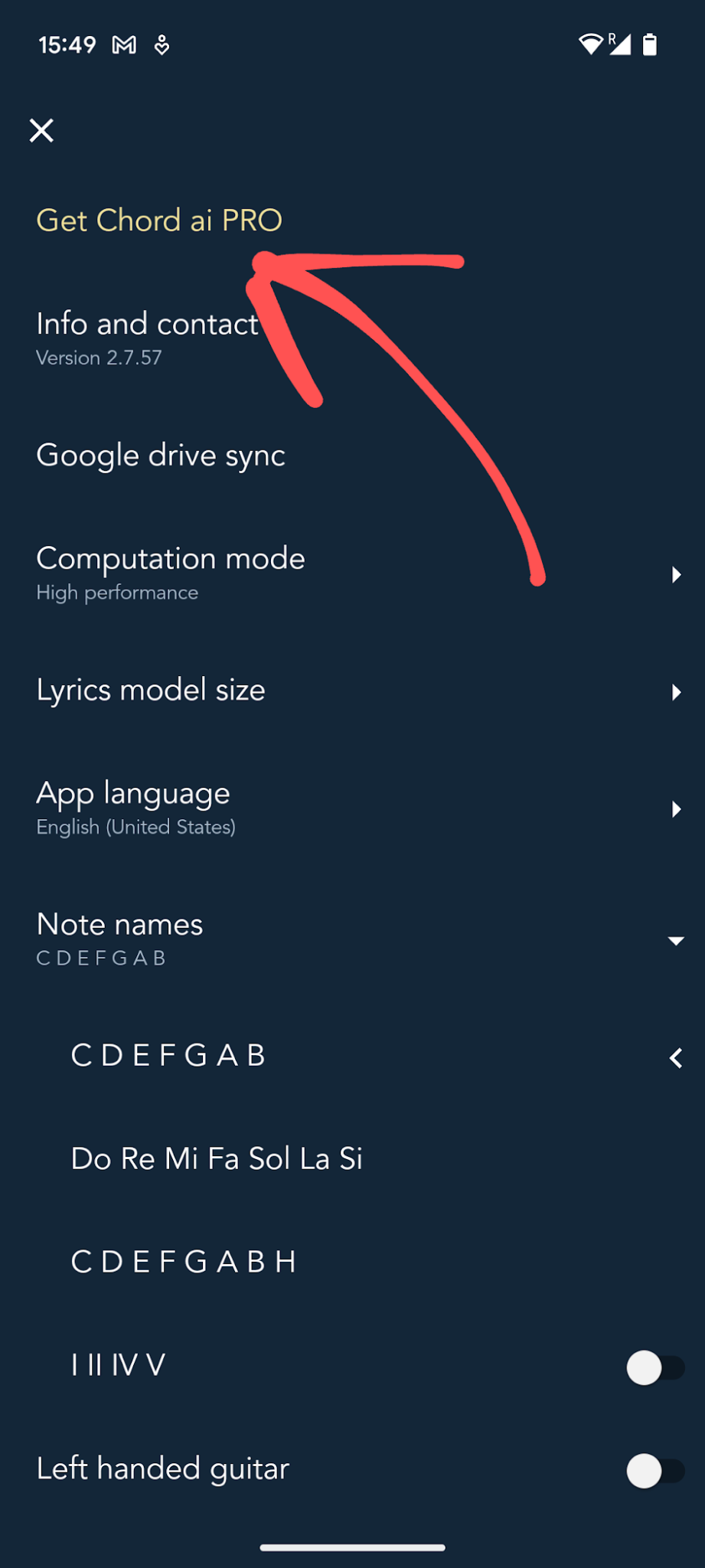
Chord ai PRO subscriptions are available inside the Android app. Tap "Get Chord ai PRO" in the app settings, or open a PRO feature, to be redirected to the payment page. Payment uses the official Google Play Store API; Google Play manages all payments. We only accept payments through the official Google Play Store. It accepts many payment methods (VISA, Mastercard, PayPal, etc.), and cash payments are possible via Google Play gift cards available in many supermarkets.
Why is my payment rejected?
Chord ai PRO payments rely on the Google Play Store for all money transfers. If a payment is rejected, the issue is between your bank and the Google Play Store. Check the Google Play Store app under "Payments and subscriptions" for details, and contact your bank if needed.
How can I cancel my PRO subscription?
You can cancel your Chord ai PRO subscription at any time.
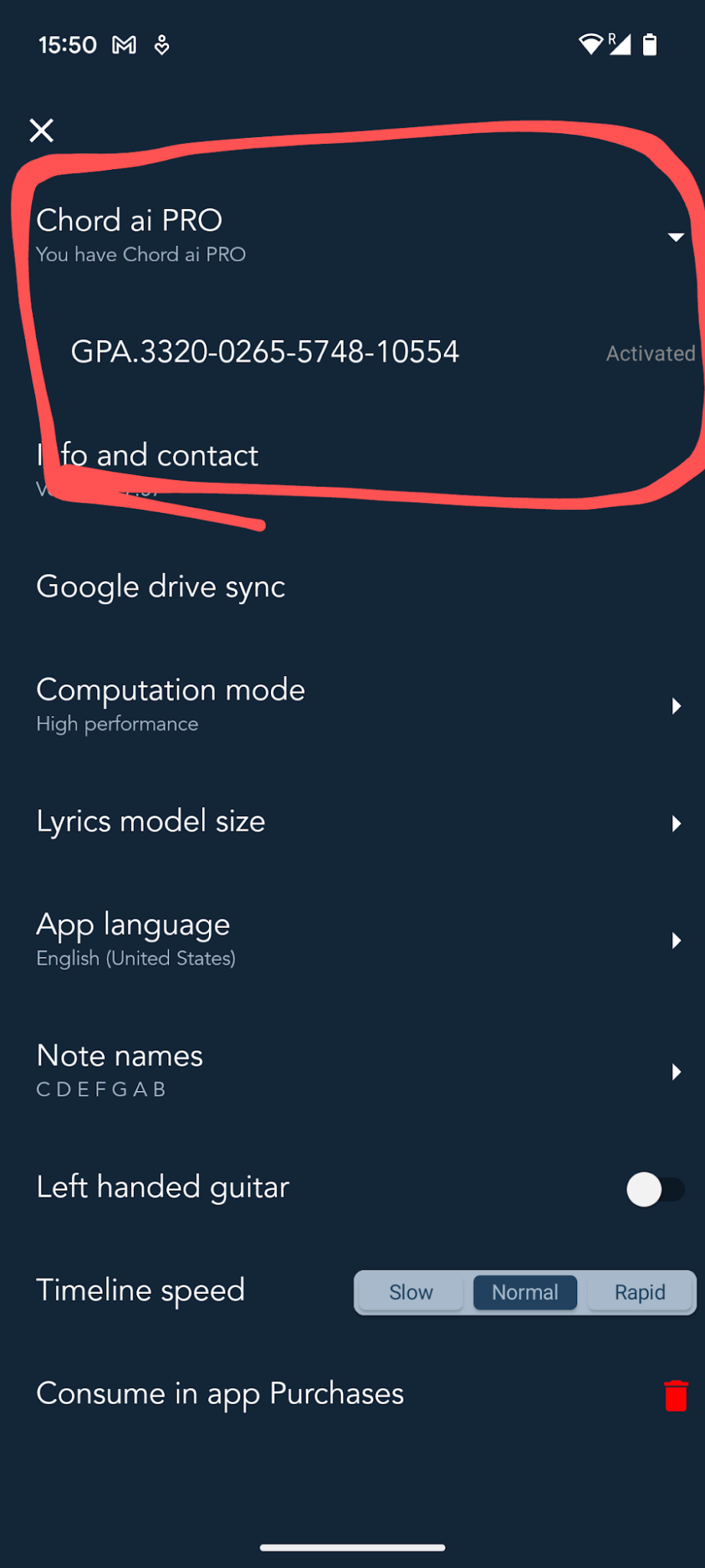
In the app settings (the gear icon), at the top of the settings page, you will see either "Get Chord ai PRO" in gold (if you are not recognized as a PRO user) or "You have Chord ai PRO" with the payment ID (if you are a PRO user). Tap the payment ID to be redirected to the Google Play Store "Payments and subscriptions" page.
From the Google Play Store app's "Payments and subscriptions" page, you can check your subscription status and cancel it.
Where can I see my payments or subscription status?
In the app settings (the gear icon), the top of the settings page shows your PRO status. Tap the payment ID to open the Google Play Store "Payments and subscriptions" page, where you can also check your payment status directly.
I am a Chord ai Android PRO user but the app is asking me to pay again. Why?
For Chord ai to recognize a PRO user, you need to be signed into the Google Play Store app with the Gmail address that paid for the subscription. Verify your subscription status inside the Google Play Store app under "Payments and subscriptions". If the payment is active and up to date there, it should work.
To verify the PRO subscription is recognized inside Chord ai: open the app settings (the gear icon). At the top of the settings page, you should see "You have Chord ai PRO" with a payment ID "GPA.XXX…".
I pay for Chord ai PRO on iOS — can I transfer the subscription to Android?
A subscription cannot be transferred between Chord ai Android and iOS. The two apps are developed independently. Your best option is to cancel your subscription on the platform you no longer need and start a new subscription on the one you do.
I pay for Chord ai PRO on Android — can I use PRO on iPhone or iPad?
A subscription cannot be transferred between Chord ai Android and iOS. The two apps are developed independently. Your best option is to cancel your subscription on the platform you no longer need and start a new one on the one you do.
How many devices can I use with Chord ai PRO on Android?
A Chord ai PRO subscription is valid on all Android devices signed into the Google Play Store app with the paying Gmail address. There is no limit on the number of devices, as far as we know.
Can I get a refund?
You can request a refund of your Google Play Store purchase using the official refund form: support.google.com/googleplay/workflow/9813244.
Performance and models
What is low-performance mode?
Some phones cannot handle the AI models used by Chord ai. Low-performance mode limits Chord ai to the minimal models needed for a decent experience, while disabling some features to remain compatible with older or less capable devices. For example, lyrics recognition is disabled in low-performance mode, and chord recognition is downgraded to a simpler, less accurate model. If your phone can run high-performance mode, there is no reason to stay in low-performance mode.
To force high-performance mode, change it in the app settings. If your phone crashes during chord analysis in high-performance mode, try toggling XNNPack acceleration on or off and restarting in high-performance mode. This trick can sometimes fix the issue, depending on your phone's specs.
What is the lyrics model size?
Chord ai includes a choice of lyrics model sizes (base, small, or medium). All three are audio-to-text lyrics transcription models that run on your phone. We recommend at least the small model for good transcription. The medium model is even better but requires longer audio analysis. Use the medium model if you have a recent and powerful phone or tablet.
The smallest base model is not recommended — it is inaccurate, but it may be more compatible with older phones or run faster. We recommend upgrading to small or medium whenever possible.
Troubleshooting: crashes and error messages
The app restarts unexpectedly. Why? What can I do?
A sudden, unexpected restart means the app crashed. If it happens repeatedly, please help us fix it: send an email to android.support@chordai.net explaining how to reproduce the bug. Ideally include a few screenshots, or better, a screen recording showing what you are doing.
I get the error message "The song is not accessible". What does that mean?
This usually means there is a connection problem with online platforms, due to your internet provider or the platform itself. If it persists for more than 48 hours, please reach out to our support team. Include the song reference and explain how to reproduce the issue.
I get the error message "Copyright protection detected". What does that mean?
You requested a song for which we identified copyrighted content. Chord ai blocks this song to respect the artist's work and the copyright owner. The song is temporarily unavailable through Chord ai Android (this may change in the future).
Can I contact the Chord ai Android support team?
Yes — but please first check that your question is not already answered in this FAQ. Most payment-related issues, for example, can be handled directly through the Google Play Store app (see cancellation and refund above). For suggestions or technical problems, contact us at android.support@chordai.net.
My phone crashes in high-performance mode. What can I do?
Some phones cannot handle the full AI models in high-performance mode. Try toggling XNNPack acceleration on or off in the app settings, then restart in high-performance mode. This sometimes fixes the issue, depending on your phone's specs. If your phone can run high-performance mode reliably, there is no reason to stay in low-performance mode.
"VIDEO_NOT_PLAYABLE_IN_EMBEDED_PLAYER" with YouTube and "Sign in to show that you are not a bot"
Users have reported that this error occurs when using Chord ai Android over a VPN. Some have solved the problem by disabling the VPN.
I cannot update Chord ai on the Google Play Store
You are trying to update the app, but it keeps downloading and never installs the update. This is a known Google Play Store issue.
Try uninstalling Chord ai and reinstalling the new version. If that does not work, clear the cache and data of both the Chord ai app and the Google Play Store app, then try again.